An Arabic keyboard uses the same physical keys as an English keyboard but maps Arabic letters to different positions. The Arabic keyboard layout is standard across Windows, Mac, and mobile devices — once you add the Arabic language to your device settings, the key mappings activate automatically.
The most common Arabic keyboard is the Arabic (101) layout. Below is the complete key mapping, all harakat shortcuts, and step-by-step setup for every device.
Complete Arabic Keyboard Mapping Table:
| English Key | Arabic Letter | Letter Name | Common In |
|---|---|---|---|
| Q | ض | Daad | ضحك |
| W | ص | Saad | صبر |
| E | ث | Thaa | ثلاثة |
| R | ق | Qaaf | قمر |
| T | ف | Faa | فتح |
| Y | غ | Ghayn | غرفة |
| U | ع | Ayn | عمل |
| I | ه | Haa | هدى |
| O | خ | Khaa | خبز |
| P | ح | Haa (deep) | حلم |
| A | ش | Sheen | شمس |
| S | س | Seen | سلام |
| D | ي | Yaa | يوم |
| F | ب | Baa | بيت |
| G | ل | Laam | لغة |
| H | ا | Alif | الله |
| J | ت | Taa | تمر |
| K | ن | Noon | نور |
| L | م | Meem | مرحبا |
| Z | ئ | Yaa with Hamza | |
| X | ء | Hamza | |
| C | ؤ | Waw with Hamza | |
| V | ر | Raa | رحمة |
| B | لا | Laa-Alif ligature | لا |
| N | ى | Alif Maqsura | |
| M | ة | Taa Marbuta | مدرسة |
| , | و | Waw | وقت |
| . | ز | Zaay | زيت |
| ; | ك | Kaaf | كتاب |
| ‘ | ذ | Dhaal | ذهب |
Harakat and Special Characters (Shift + key):
| Shift + Key | Symbol | Name | Sound |
|---|---|---|---|
| Shift + Q | ـَ | Fatha | Short “a” |
| Shift + A | ـِ | Kasra | Short “i” |
| Shift + E | ـُ | Damma | Short “u” |
| Shift + X | ـْ | Sukoon | No vowel |
| Shift + ~ | ـّ | Shadda | Doubled consonant |
| Shift + W | ـً | Tanwin Fath | “-an” |
| Shift + S | ـٍ | Tanwin Kasr | “-in” |
| Shift + R | ـٌ | Tanwin Damm | “-un” |
| Shift + 2 | ـ | Tatweel (elongation) | |
| Shift + / | ؟ | Arabic question mark | |
| Shift + . | ـ | Arabic comma |
Type Arabic Online Without Installing a Keyboard
If you need to type Arabic quickly without changing your device settings, several free online Arabic keyboards allow you to type and copy Arabic text instantly:
| Tool | URL | Features |
|---|---|---|
| Gate2Arabic | gate2home.com/Arabic-Keyboard | Online keyboard + harakat support |
| Google Input Tools | translate.google.com | Type Arabic, copy to clipboard |
| Arabic Keyboard Online | arabic-keyboard.org | Simple online Arabic keyboard |
| Lexilogos Arabic | lexilogos.com/keyboard/arabic.htm | Keyboard + transliteration |
How to use an online Arabic keyboard:
- Open one of the links above
- Click the Arabic letters on the virtual keyboard — or type on your physical keyboard if Arabic is enabled
- The Arabic text appears in the text box
- Copy (Ctrl+C) and paste wherever you need it
When to use online keyboards: Ideal for quick searches, sending a message, or testing a phrase without setting up Arabic on your device. For regular Arabic typing practice, installing the keyboard on your device (instructions below) is more efficient.
How to Add Arabic Keyboard on Windows and Mac: Step-by-Step
If you are using a computer, setting up the Arabic keyboard is easy. Depending on your system, the steps might be a little different, so I’ll walk you through the most common methods.
How to Add Arabic Keyboard on Windows?
- Go to the Settings.
- Click on Time & Language.
- Select Language and then click Add a Language.
- Choose Arabic from the list.
- After you add it, you can switch between languages by pressing Alt + Shift or Windows + Space.
Now, you’re ready to start typing Arabic!

How to Add Arabic Keyboard on Mac?
- Open System Preferences.
- Click Keyboard.
- Go to the Input Sources tab.
- Click the + button and find Arabic in the list.
- Add it, and now you can switch between your keyboards using Command + Space.

How to Write Arabic on iPhone and Android?
Typing Arabic on your smartphone is also important. You might want to send a message in Arabic or search for something on the internet in Arabic.
How to Add Arabic Keyboard to iPhone?
- Go to Settings.
- Tap General, then Keyboard.
- Select Keyboards and then Add New Keyboard.
- Find Arabic in the list and tap it to add.
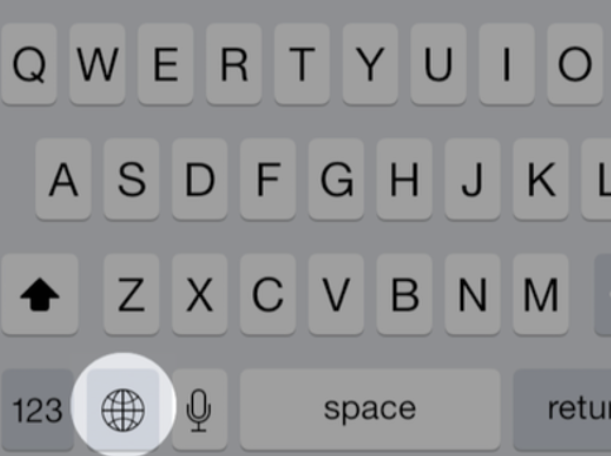
After that, you can switch between languages by tapping the globe icon on your keyboard.
How to Add Arabic Keyboard to Android and Samsung Devices?
- Open Settings.
- Go to System, then Languages & Input.
- Select Virtual Keyboard, then Gboard (or your default keyboard).
- Tap Languages and add Arabic.
Once the keyboard is added, you can switch between Arabic and other languages by holding the space bar and selecting the language you want to type in, or by tapping the globe icon on your keyboard.
Master Arabic with Kalimah Center
Join our expert-led online classes and start your journey toward Arabic fluency today.
Book Your Free TrialHow to Type Arabic Letters: Complete Key Mapping and Techniques
Now that you know how to add the Arabic keyboard to your device, let’s talk about how to use Arabic keyboard adn write Arabic on you computer or laptop. At first, it might feel difficult, especially if you’re used to typing in English, but with time, it gets easier. I will give you some practical steps and tips that can help you improve faster.

1. Type Familiar Words at First
The best way to start is by typing words that you already know. For example, let’s try typing “مرحبا” (Marhaba – Hello).
When you look at the Arabic keyboard, you will notice that each letter has its own place. For “م” (Mīm), you need to press the “L” key on your English keyboard. For “ر” (Rā’), press “V”. Soon you will get used to it.
We always tell our students to start by typing the most common Arabic words like “السلام” (Al-salām – Peace) or “شكرا” (Shukran – Thank you). These words are easy and useful in everyday conversations. Try typing them 10 times to get familiar with the keyboard.
At Kalimah Center, we focus on building strong writing skills, and we use the Iqraa book as a part of our online Arabic course curriculum to emphasize writing practice from day one, especially Arabic handwriting.
Join us for a FREE trial class.

Typing is important also, it is a part of the general writing skill. When you type, you practice forming sentences, understanding how words fit together, and building fluency.
2. Memorize Common Letters on the Arabic Keyboard
In Arabic, there are some letters you will use all the time, like “ا” (Alif), “ل” (Lām), and “م” (Mīm). It’s a good idea to memorize where these letters are on the keyboard.
For example:
- “ا” is on the “H” key.
- “ل” is on the “G” key.
- “م” is on the “L” key.
3. Use Both Hands Correctly When Writing on Arabic Keyboard
A mistake many learners make is learning typing Arabic at first only with one hand, as the still searching the letters. This is wrong, it’s important to use both hands right from the beginning. When you type with both hands, it helps you move faster and be more accurate.
For example, when you want to write “العربية” (Al-Arabiyyah – Arabic), your right hand should press the “H” key for “ا” (Alif), while your left hand presses the “G” key for “ل” (Lam). This balance will make your typing smoother from the beginning.

4. Know How to Use Arabic Keyboard with Harakat
When typing in Arabic, you may also want to add harakat (short vowels) like fatha ( َ), kasra ( ِ), and damma ( ُ). As you probably know, these marks are used to show how to pronounce words correctly.
To type these vowels on the Arabic keyboard, you will need to use the Shift key along with certain numbers:
- Fatha ( َ ) – Press Shift + Q.
- Kasra ( ِ ) – Press Shift + A.
- Damma ( ُ ) – Press Shift + E.
5. Practice Phrases and Sentences on the Arabic Keyboard
Once you feel comfortable typing individual words, the next step is to practice full sentences. Start with simple phrases that you’ve learned in class or from your textbook. For example, type:
- “أنا أحب اللغة العربية.”
(Ana uḥibbu al-lughah al-‘arabiyyah – I love the Arabic language).
When you write full sentences, you get a better understanding of how the letters connect and how Arabic words flow together.
Tip: A good exercise is to find short Arabic sentences online or in books and type them. You can also try typing short paragraphs from the Iqraa book as part of your writing practice.

How to Type Arabic on an English Keyboard?
There’s something called transliteration, where you type Arabic sounds using English letters. For example, you write “Salam” instead of “سلام.”
Some tools automatically change these transliterated words into Arabic script. It’s not a perfect solution, but it helps when you don’t have access to an Arabic keyboard.
Master Arabic with Kalimah Center
Join our expert-led online classes and start your journey toward Arabic fluency today.
Book Your Free TrialInside Kalimah Center: Moments from Our Courses
Get a glimpse into the vibrant learning experience at Kalimah Center. These snapshots capture real moments from our live classes—where students engage deeply, connect with passionate instructors, and grow in a welcoming, supportive environment.
Here Are The Reviews On Our Courses:
Our students frequently commend the excellence of our courses and the commitment shown by our instructors. You can read their complete reviews on Trustpilot.

Want to Improve Your Arabic Writing? Kalimah Center Can Help!
You need guided practice, expert feedback, and a supportive learning environment.
Our online Arabic courses are designed to help you write Arabic beautifully and confidently.
Here’s how we can help:
- Start with the basics: Our Arabic Alphabet course will teach you how to write letters correctly and efficiently.
- Learn essential grammar: Our courses cover all the important grammar rules you need to write accurately.
- Practice with interactive exercises: Our engaging activities will help you develop your writing skills in a fun and effective way.
Join us for a FREE trial class.
📚 Explore Our Courses:
Online Arabic Course: Tailored to your level, our comprehensive Arabic program includes 16 teaching levels and 400+ hours of personalized sessions.
Online Quran With Tajweed Course: Perfect for non-Arabic speakers, our course spans 13 levels and equips you with Tajweed mastery from beginner to advanced.
Online Arabic Course For Kids: Nurture your child’s love for Arabic with our engaging and structured program, available in 24 levels for primary, intermediate, and secondary stages.
🚀 Start Your Free Trial Today! 🚀
Don’t miss out on this life-changing opportunity to deepen your faith and knowledge. Sign up now for your free trial and take the first step towards becoming a better practicing Muslim with Kalimah Center!

Conclusion
Learning how to use the Arabic keyboard is a practical and essential step in mastering the Arabic language. As this guide has shown, adding the Arabic keyboard layout to your Windows, Mac, iPhone, or Android device is a simple process, opening up a world of authentic practice. By starting with familiar words, memorizing the placement of common letters, and correctly employing both hands, you can quickly build the muscle memory required for efficient Arabic typing. This crucial skill allows you to internalize vocabulary and sentence structure more effectively, serving as a powerful supplement to traditional handwriting practice and accelerating your overall fluency.
The ability to type in Arabic not only boosts your daily communication but also solidifies your learning foundation. Whether you are using the keyboard to practice phrases, apply harakat (short vowels) for correct pronunciation, or simply exchange messages, consistent typing practice is a vital part of developing strong writing skills. At Kalimah Center, we stress this integration of writing and typing to provide a comprehensive learning experience. We encourage you to implement the step-by-step tips provided here, and if you are looking for guided practice, expert feedback, and a structured curriculum to further improve your Arabic writing and language skills, we invite you to explore our courses and start a free trial today.
FAQs about Arabic Keyboard
Q1: What is the Arabic keyboard layout called?
The standard Arabic keyboard layout is called Arabic (101) — it uses the same physical keys as a standard English QWERTY keyboard but maps Arabic letters to different positions. For example, the “H” key types Alif (ا), “G” types Laam (ل), “L” types Meem (م). The complete mapping is in the table above. This layout is standard across Windows, Mac, iOS, and Android devices when Arabic language input is enabled.
Q2: How do I add harakat (vowel marks) on an Arabic keyboard?
Harakat are added using Shift + letter combinations on the Arabic keyboard: Fatha (ـَ) = Shift + Q, Kasra (ـِ) = Shift + A, Damma (ـُ) = Shift + E, Sukoon (ـْ) = Shift + X, Shadda (ـّ) = Shift + ~ (tilde). Type the Arabic letter first, then press the Shift combination to add the vowel mark above or below it. All three Tanwin forms are also accessible through Shift combinations — see the complete harakat shortcuts table above.
Q3: How do I switch between Arabic and English keyboard on Windows?
On Windows, switch keyboard language using Alt + Shift (older shortcut) or Windows + Space (modern shortcut). You can also click the language indicator in the taskbar (bottom right corner). On Mac: Command + Space (if configured). On iPhone: tap the globe icon on the keyboard. On Android: hold the space bar and select the language, or tap the globe icon. The language indicator in your taskbar/status bar always shows which keyboard is currently active.
Q4: Why is my keyboard typing in Arabic when I want English?
Your keyboard language has switched to Arabic — this happens when Alt + Shift or Windows + Space is pressed accidentally. To switch back: press Alt + Shift or Windows + Space to toggle languages, or click the language indicator in the taskbar and select English. If Arabic appears as your default, go to Settings → Time & Language → Language and move English to the top of the list to set it as the primary language.
Q5: How do I type the “@” symbol on an Arabic keyboard?
On an Arabic keyboard, the “@” symbol is accessed by pressing Shift + 2 — the same as on an English keyboard. However, some Arabic keyboard layouts may position it differently. If Shift + 2 doesn’t work, try Alt + Q or check your specific keyboard layout. Alternatively, you can copy the “@” symbol from an English text and paste it into your Arabic text — Arabic supports mixing the “@” symbol within Arabic text for email addresses and social media handles.